
Table of Contents
- BeeTV
- What Is BeeTV APK?
- App Specification
- Why Do People Use BeeTV?
- Main Features of BeeTV
- BeeTV for Sports and News
- How to Download BeeTV APK
- How to Install BeeTV on Android
- BeeTV on Other Devices
- Video Quality and Internet
- Is BeeTV Free and Safe?
- BeeTV Guide in 20 Notes
- BeeTV by Device
- Pros and Cons
- Latest From the Blog
- Final Words
- FAQs
BeeTV
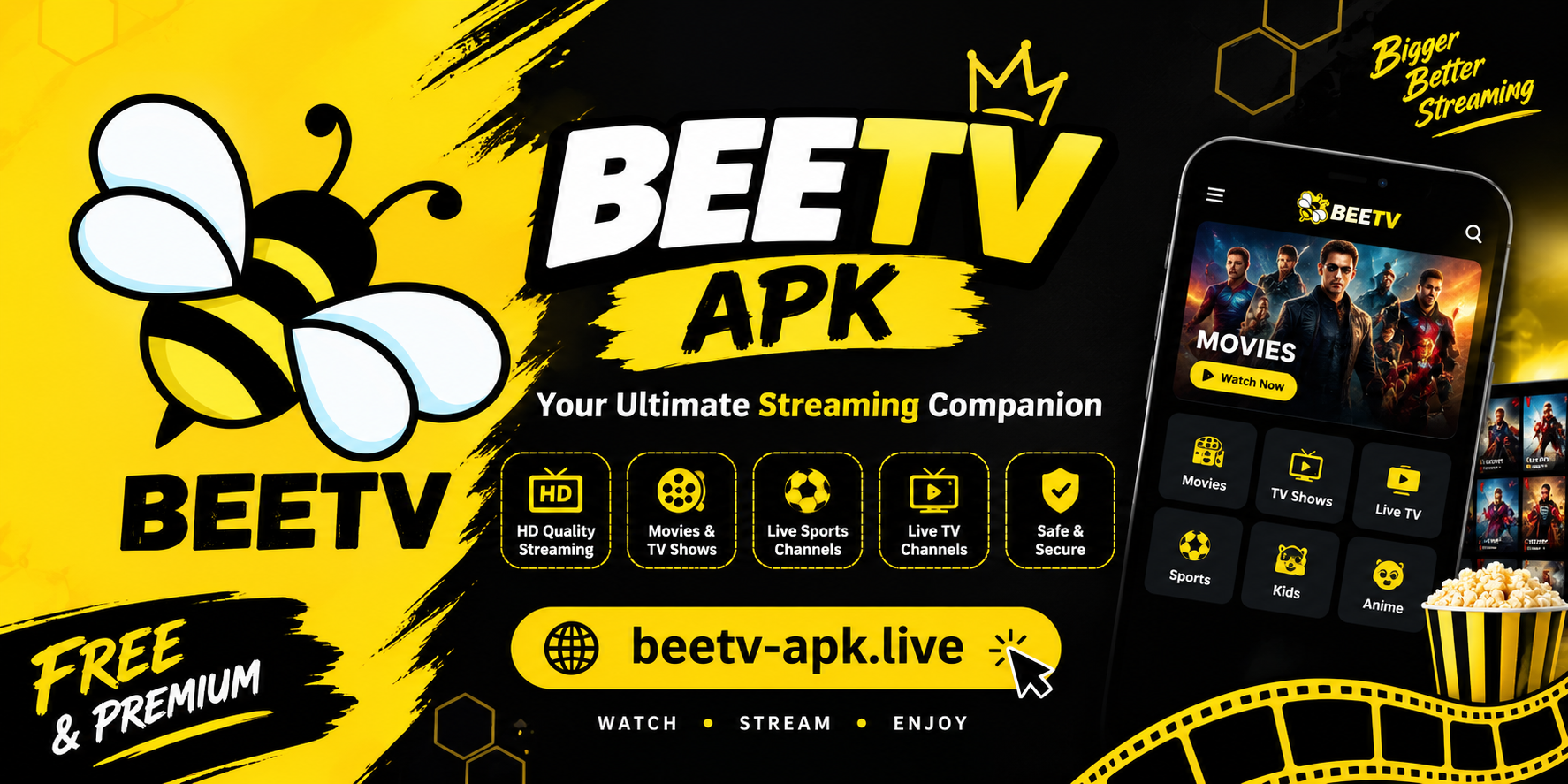
BeeTV is a streaming app made for people who like watching movies, TV shows, live TV, sports, news and other online content on their Android devices. Instead of moving between many different apps, users can explore different types of content from one simple interface.
The main idea behind BeeTV is easy access. You can open the app, choose a category, browse the available titles and select a stream. It is useful for anyone who wants a simple way to explore content on a phone, tablet or TV box.
What Is BeeTV APK?
BeeTV APK is an Android based streaming application focused on movies, series and entertainment. Different versions of the app have offered features such as category browsing, sports content, news, entertainment channels and video playback. The app has a simple layout, so new users can usually learn the basic controls within minutes.
App Specification
| App Info | Details |
|---|---|
| App Name | BeeTV |
| Version | Latest |
| Size | 15.8 MB |
| Developer | BeeTV Team |
| Android | 5.0+ |
| Category | Movies, Live TV & Entertainment |
| Price | Free |
| Content | Movies, Shows, Sports & News |
| Format | APK |
| Internet | Required |
Why Do People Use BeeTV?
Convenience is the main reason people look for the BeeTV app. Movies, shows, sports and news are hard to keep track of when every category needs a separate service. BeeTV brings several categories into one place, so you can move from one type of content to another quickly.
The interface is built around browsing. You can look through available titles, pick a category and start a supported stream without a complicated menu system. You can see every section on our BeeTV features page.
Main Features of BeeTV
Movies and TV Shows
Browse films and series by genre, year or popularity, depending on the version you install.
Read moreSports Streaming
Find cricket, football, basketball and tennis streams when sources are available.
Read moreNews Channels
Check news streams from different regions in one section instead of searching one by one.
Read moreBuilt-In Player
Play compatible streams inside the app or pick an external player for extra controls.
Read moreLive TV Streaming
Live TV is one of the areas many users explore in BeeTV. Depending on the version and available sources, you may find entertainment, news, sports and other channels. Channel availability changes over time, so do not expect every version to carry the same list.
Sports Streaming
Sports fans can use the latest BeeTV APK to explore available sports streams. Stream quality depends on the source and your internet connection, so a stable connection matters for smoother playback.
News Channels
The news section makes it easier to browse available channels from different regions. Instead of searching for each channel separately, you can open the news category and choose a suitable stream.
Entertainment Channels
Besides sports and news, entertainment is a big part of the BeeTV experience. Depending on the version, you may find shows, movies and general entertainment, so the app works for much more than live sports.
Simple Interface
BeeTV focuses on straightforward navigation, which helps you find categories and titles without too many steps. A clean layout is especially handy on small mobile screens where crowded menus get annoying.
Built-In Playback
Some versions include a built-in player for compatible streams, so you can select a title and play it without leaving the app. Player controls can differ between releases. Our playback guide explains the options.
Multiple Categories and Languages
Content is organised into sections such as movies, shows, sports, news and entertainment. Some versions also offer content in several languages, which helps users looking for regional or international programming.
BeeTV for Sports and News
BeeTV for Cricket
Cricket is one of the most common reasons people search for streaming apps. BeeTV may show cricket channels or events depending on your region and current sources. Live sports availability changes quickly, so check the sports section before an important match.
BeeTV APK for Football
Football fans can explore available channels and match streams from different leagues. The experience depends on the source, your internet speed and your device. Watching on a big screen? Try our smart TV setup guide.
BeeTV for News
If you follow current events, the news category covers channels from different regions and topics. Browse the list and pick the stream that runs best on your connection.
BeeTV for Movies and Entertainment
Some releases focus more on movies and TV shows, while others lean towards live channels. Check the features of the version you are installing on our download page instead of assuming every BeeTV APK has the same library.
How to Download BeeTV APK
- Open our BeeTV download page or another source you trust.
- Download the latest version that matches your Android device.
- Open the downloaded APK file from your notifications or Downloads folder.
- If Android asks for permission to install apps from this source, allow it and continue.
- Finish the installation and open BeeTV.
Always make sure the APK matches your Android version and device architecture when that information is listed.
How to Install BeeTV on Android
Step 1: Download the APK
Download the latest APK file to your Android phone or tablet.
Step 2: Open the File
Go to your Downloads folder and tap the APK file.
Step 3: Allow Installation
If your phone blocks the installation, open the Android security setting it points to and allow installation from the source you used.
Step 4: Install the App
Return to the APK file and tap Install. Wait until the process finishes.
Step 5: Open the App
Launch BeeTV and explore the categories. New here? The features tour shows where everything is.
BeeTV on Other Devices
BeeTV for PC
Run the APK on Windows or Mac through an Android emulator and watch on a bigger screen.
PC guideBeeTV on Firestick
Sideload with the Downloader app and control everything with your Fire TV remote.
Firestick guideBeeTV on Smart TV
Install on Android TV, Google TV and TV boxes using USB or a file manager.
Smart TV guideBeeTV for iPhone
Learn why APK files do not work on iOS and which options iPhone users have.
iOS guideBeeTV on Android TV
Compatible versions can run on Android TV and other Android based TV devices, and a TV screen makes long viewing sessions more comfortable. Compatibility depends on the version and your setup. Our BeeTV smart TV guide covers the details.
BeeTV on Firestick
Many users want BeeTV on Fire TV for a larger screen. Compatibility depends on the APK version and Fire OS, and a phone build may not feel the same on a TV. Follow the BeeTV Firestick steps before installing.
BeeTV APK for PC
BeeTV is built for Android, but you can use it on a computer through an Android emulator. Install the emulator, set it up and load the APK inside it. Performance depends on your hardware and emulator settings. Read the BeeTV for PC walkthrough.
BeeTV for iPhone
APK files are made for Android, so they cannot be installed directly on an iPhone. iOS uses a different app format and installation system. If an official iOS version or web service becomes available, use that instead. Details are on our BeeTV iOS page.
Video Quality and Internet
BeeTV Video Quality
Video quality varies from one stream to another. Some sources give clearer playback, while others use lower resolutions. Your internet speed also plays a big part, so HD quality is not guaranteed for every title.
Does BeeTV Need Fast Internet?
A stable connection is important for streaming because video uses far more data than normal browsing. On a slow line you may see buffering, delays or lower quality. A reliable Wi-Fi or mobile data connection gives a smoother experience. See our buffering fixes for more help.
Is BeeTV Free and Safe?
Is BeeTV APK Free?
Most versions of BeeTV are offered as free streaming apps. Features, ads and available content can vary between versions. Be careful with websites that claim to unlock special paid features, and always check the APK and its permissions before installing.
Is BeeTV Safe?
Safety depends on the exact APK file and where it came from. Different apps may use the BeeTV name, so do not assume every file is identical. Scan the file with a trusted security tool, review its permissions and avoid suspicious pages. Our disclaimer explains our role.
BeeTV Guide in 20 Notes
1. Getting started with BeeTV takes only a few minutes. Visit our BeeTV APK download page, grab the latest file, and allow installation from unknown sources when Android asks. After that, open the app, pick a category, and start browsing the titles and channels available in your region right now.
2. BeeTV groups its content into clear sections such as movies, TV shows, sports, news and entertainment. This layout saves time because you do not need to scroll through one endless list. You can read about every section in detail on our BeeTV features page before you install the app on your phone.
3. Many people prefer watching on a bigger screen, and BeeTV can run on a Windows computer through an Android emulator. Install a trusted emulator, sign in, and load the APK inside it. Our BeeTV for PC guide explains each step, the settings that matter, and how to fix common playback issues.
4. iPhone users often ask whether BeeTV works on iOS. Android APK files cannot be installed directly on an iPhone or iPad because Apple uses a different app format. Our BeeTV for iOS page explains why this happens and lists safer options you can try if an official version becomes available later.
5. Fire TV Stick owners can sideload BeeTV with the Downloader app after enabling apps from unknown sources in developer options. A remote friendly layout depends on the version you install. Read our BeeTV Firestick guide for the full setup, recommended settings and tips to keep playback smooth on older Fire TV models.
6. Android based smart TVs and TV boxes can also run BeeTV. You can copy the APK with a USB drive or use a file manager app to download it directly. The BeeTV smart TV page covers both methods along with remote control tips and display settings for clearer pictures on large screens.
7. Keeping BeeTV updated helps you get fixes for broken links, playback bugs and layout problems. Older builds may stop loading some sources over time. Check our latest BeeTV version page regularly, compare the version number with the one on your phone, and install the newer file over the old one without uninstalling.
8. Streaming quality depends heavily on your internet connection. For standard definition, a steady 3 to 5 Mbps line is usually enough, while HD playback works better above 10 Mbps. If buffering continues, lower the quality inside the player. Our BeeTV blog shares more practical tips for slow mobile data and crowded Wi-Fi networks.
9. Over time the app stores cached images and data that can slow it down. Clearing the cache from Android settings often fixes freezing and slow loading. This does not delete the app itself. You can find a short BeeTV not working checklist on our blog along with answers to other common questions.
10. Some users like to pair BeeTV with an external video player for extra controls such as subtitle styling, playback speed and gesture support. The app may let you choose a player when you open a stream. Visit the BeeTV playback options section to see which choices the current version supports for your device.
11. Subtitles make movies and shows easier to follow, especially in a second language. Depending on the source, BeeTV may offer subtitle files in several languages. You can usually adjust their size and timing inside the player. Read the BeeTV subtitles section to learn how subtitle support works across different versions of the app.
12. Saving titles to a favourites list lets you return to them later without searching again. This is useful for long series where you watch one episode at a time. The option depends on the version you install, so check the newest release on our BeeTV APK page before relying on it for your watchlist.
13. Your privacy matters when you install any third party app. Review the permissions BeeTV requests and deny anything that looks unnecessary for streaming. Our privacy policy explains what this website collects from visitors, and the disclaimer page clarifies that we are not the developer of the BeeTV app itself in any way.
14. Before installing any APK, scan it with a trusted antivirus tool and confirm the file size matches the details listed on our site. Avoid pages that ask for payment or personal details in exchange for the file. Our terms and conditions page explains how you may use the files and guides we share.
15. BeeTV does not host its own video files and instead links to content found on the web. Respect the copyright laws in your country and watch only what you have the right to access. If you own content and believe it appears here unfairly, please follow the steps on our DMCA policy page.
16. Like most websites, beetv-apk.live uses cookies to remember basic settings and measure visits. These small files do not install anything on your phone, and you can block or delete them in your browser at any time. The cookie policy page lists the types we use and explains how you can manage them.
17. Parents who share a device with children should know that BeeTV does not include strong parental controls in every version. Using a separate Android profile or a device level lock can help. You can also read our family viewing guide for simple ideas on keeping streaming suitable for younger users at home.
18. Long streaming sessions use a lot of battery and mobile data. Lowering the brightness, closing background apps and choosing standard quality on mobile data can extend viewing time. If you watch often at home, connecting to Wi-Fi is cheaper and usually smoother. Our slow internet guide covers more data saving tricks.
19. Running into a problem we have not covered yet? Send us a message through the contact us page with your device model, Android version and a short description of the issue. We read every message and use common questions to improve the guides published across this website and the BeeTV blog.
20. beetv-apk.live is an independent guide site run by a small team of Android users. We test new builds, write simple setup guides and keep the information here as current as we can. Learn more about who we are, how we test each release and how we work on our about us page.
BeeTV by Device
| Device | Install Method | Difficulty | Guide |
|---|---|---|---|
| Android Phone | Direct APK install | Easy | Download |
| Windows / Mac PC | Android emulator | Medium | PC Guide |
| Amazon Firestick | Downloader sideload | Medium | Firestick Guide |
| Android Smart TV | USB or file manager | Easy | Smart TV Guide |
| iPhone / iPad | Not supported as APK | N/A | iOS Guide |
Pros and Cons
Pros
- Simple and easy interface
- Movies, shows, sports and news in one app
- Several content categories
- Works on phones, TVs and PC emulators
- Free to download
- Easy browsing by category
Cons
- Title and channel availability can change
- Versions may offer different features
- Stream quality depends on the source
- Some APK files come from unknown sources
- Not installable on iPhone
- Internet speed affects playback
Latest From the Blog
BeeTV Not Working? Quick Fixes
A step by step checklist for crashes, blank screens and dead links.
Read postUpdate BeeTV Without Losing Data
Install a newer build over the old one and keep your favourites.
Read postFinal Words
BeeTV is an Android streaming app for exploring movies, TV shows, live channels, sports and news. Its simple design makes browsing easy, and clear categories help you find content fast. The experience can still change between versions, since titles, features and playback quality depend on the release and its sources.
If you plan to use the BeeTV app, check the version carefully, use a trusted APK source and keep your device protected. With the right setup and a stable connection, it is a simple way to explore streaming content. Start from our BeeTV APK download page.
FAQs
Is BeeTV easy to use?
Yes. The home screen shows categories such as movies, shows, sports and news, so you can find something to watch in a couple of taps. See the features page for a full tour.
Does BeeTV support cricket?
BeeTV can show cricket related streams when sources are available. Match availability changes often, so check the sports section a little before an important game starts.
Does the latest BeeTV app support football?
Football leagues and matches may appear in the sports section depending on the sources available in your region. Keep the app updated from our download page for the best results.
Can I watch HD content on BeeTV APK?
Some sources offer HD playback, while others stream in lower resolutions. Your internet speed also decides the quality you get, so HD is not guaranteed for every title.
Can I install BeeTV on iPhone?
No. APK files are made for Android and cannot be installed on iOS. Our BeeTV for iOS guide explains the alternatives.
Why does BeeTV keep buffering?
Buffering usually comes from a slow or unstable connection or a busy source. Lower the video quality, switch to another source and clear the app cache. Our buffering guide has more fixes.
Is BeeTV safe to install?
Safety depends on the file and where you got it. Scan the APK with an antivirus tool, check its permissions and avoid suspicious websites before installing.
Why are some channels or titles not working?
Streaming sources change over time and some stop working. Update to the latest version, try a different source, or read our troubleshooting checklist.
Ready to Try BeeTV?
Get the latest APK, then follow the setup guide for your device: PC, Firestick, Smart TV or iPhone.
Go to Download Page